There's a moment in every trial, deposition, or mediation where the evidence on screen has to move exactly when you need it to, pause on the right frame, jump to the right timestamp, sit side by side with the document that contradicts it. TrialPad has always been built around that moment, putting the presentation in the attorney's own hands, on the iPad in front of them, controlled with a finger or an Apple Pencil instead of a mouse and a technician.
The latest round of updates pushes that idea further. Multimedia now gets the precision tools documents have always had. Split View is more powerful than ever, allowing you to compare two videos, two documents, or one of each. Annotations and exhibit stickering are faster to reach and easier to control mid-presentation. And a handful of navigation and layout changes make TrialPad feel like it's keeping pace with you instead of the other way around.
Read on below for the full breakdown of everything that's new! And join us for our live webinar September 17, 2026, 13:00 Eastern Time. Our team will walk through the changes and take your questions in real time. Register now to save your seat: https://us02web.zoom.us/webinar/register/WN_DdcFZk_GQFyfoVw4cmUDRQ
Multimedia, Reimagined
Your video and audio evidence just got the upgrade it deserves: the same razor-sharp, hands-on control you've always had over documents now extends fully to multimedia. Every pause, replay, and highlight lands exactly when you want it to.
TrialPad's multimedia viewer has been rebuilt with playback controls and gestures that make it fast to operate one-handed, in the moment, without looking away from the jury. Try out these new gestures:
- Hold your finger on the video to pause it temporarily
- Hold the left or right edge to jump into 2× playback
- Double-tap to skip forward or rewind 10 seconds
- Pinch to zoom into a detail on the video as it plays
- Drag the scrubber for a live thumbnail preview that shows you exactly which frame you're about to land on
You can also opt to loop a clip, jump straight to a timestamp, or set a custom playback speed. Picture a body-cam video where the critical five seconds are buried in twenty minutes of footage. Instead of narrating "keep going... a little more... there" while someone else drags a timeline, you hold the edge of the screen, watch the frame counter, and let go exactly where you need to be.
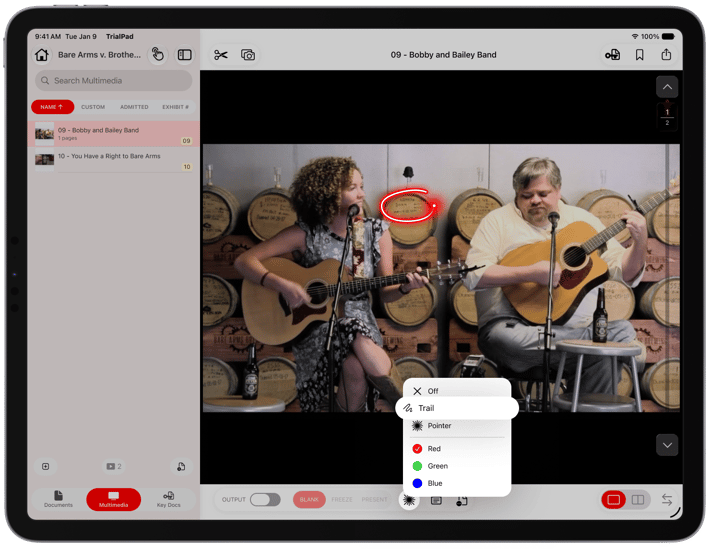
The Laser and Laser Trail now work on video, too. Note that the Laser Tool has moved out of the annotation palette to the bottom of the screen. This means you can use the Laser Tool along side your presentation controls. You can use the Laser Tool across a playing video the same way you've always been able to on a document, or use Laser Trail so a fact-finder's eye stays locked on the exact person or object you're pointing at while the clip keeps rolling. It's a small addition that solves a real problem: it's very hard to describe what's happening in a moving image with words alone. Now you can just point.
We added Bookmarks to multimedia so you can save a specific timestamp in a video or audio file and jump straight to it when you need it. Use Bookmarks during a long deposition clip, in a recorded interview, or in surveillance footage. You no longer have to remember "it's around the fourteen-minute mark”, just tap once, and you’re there.
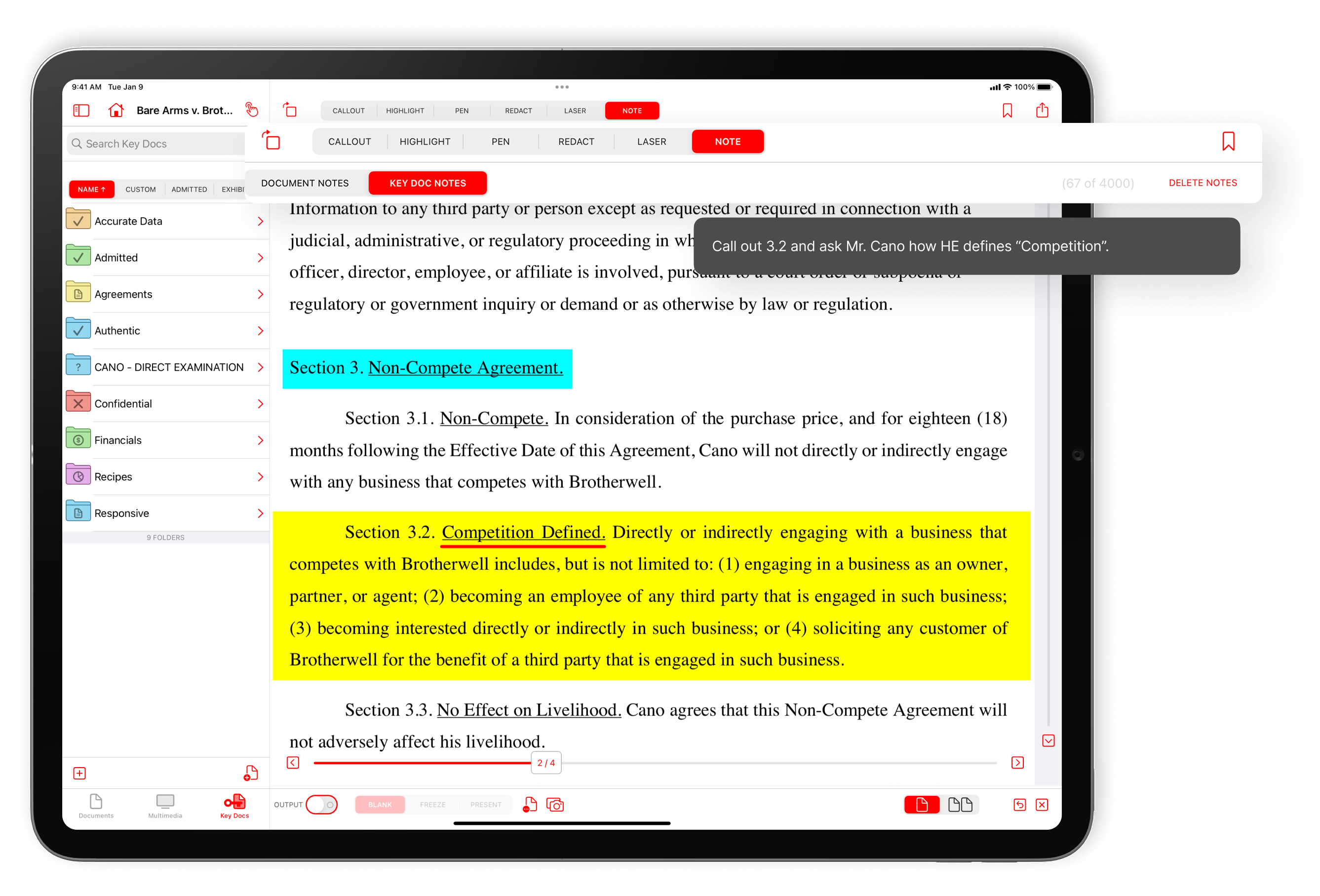
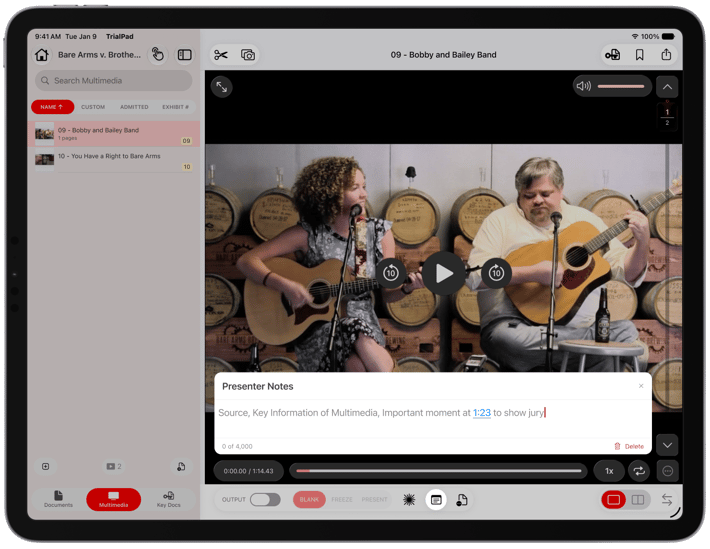
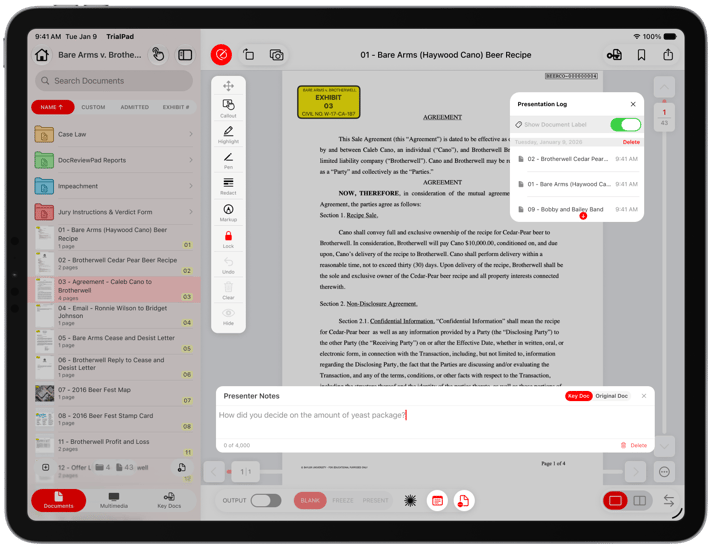
While we were creating the ability to jump to timestamps, we decided to make Presenter Notes for multimedia smarter and more visible. Type a timestamp into your Presenter Notes in a natural format like `1:23`, and it will automatically become a tappable link that jumps the video straight to that moment. We also moved Presenter Notes to the bottom presentation toolbar, next to the other tools you reach for while actually presenting. Better still, Presenter Notes opens in a floating window you can resize and drag wherever it's most useful. So you never lose your place or your outline while you present.
Perhaps the most powerful change is editing your multimedia. Now clipping video or audio takes exact numbers. If you already know a clip needs to start at 12:04 and end at 14:37, you can type those timestamps directly instead of dragging trim handles until they line up. It's a small change that saves real time when you're prepping a highlight reel of clips to send your client or present at mediation.
Presenting Evidence Side by Side
Split View in TrialPad has always let you show two things at once. We’ve improved it to allow you to choose horizontal or vertical comparisons, and even swap positions in a tap.
Choose horizontal or vertical, resize on the fly, and swap positions in a tap. Split View supports both a horizontal split and a vertical split, so you can pick whichever layout fits the documents you're showing. Vertical works best for two portrait pages (typical documents you might compare side by side. The horizontal split suits two landscape exhibits like two spreadsheets or a map and a photo. Tap and hold to change between vertical or horizontal split views.
The split isn't locked at 50/50, either. Drag the center divider left or right (up and down in vertical view) to give one side more room, whether that means enlarging a photo or leaving space for the jury to read fine print. Callouts can span both sides of the split view or stay contained to just one. And a Switch Position button beside the split view options lets you quickly flip which document is on which side without rebuilding the view.
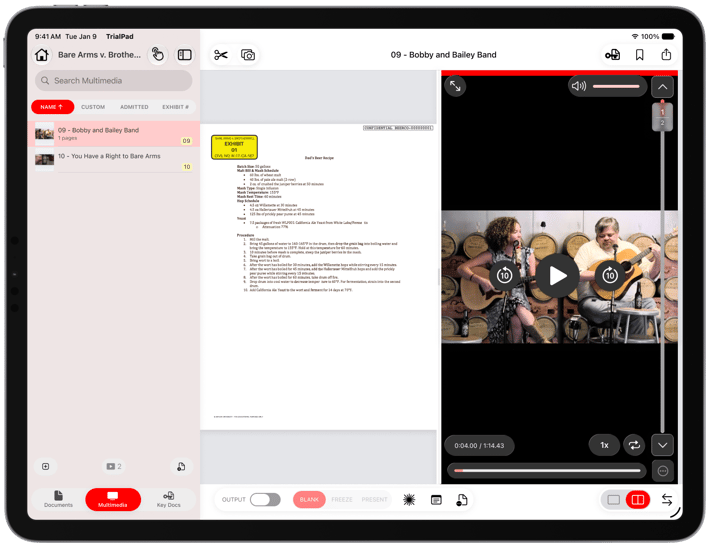
Powerfully, we’ve added multimedia support in Split View too. Put two video clips next to each other, or pair a document with a video like a contract next to the recorded call that contradicts it, or a photo next to the surveillance clip that places someone at the scene. Within a multimedia pane, you can drag the video itself to reposition it in the frame. Center a face, follow where the action moves, or nudge it into view without ever pausing playback. This is the layout for the exact moment a case turns on a comparison: here's what the document said, here's what actually happened. Side by side, at the same time, without cutting away from one to show the other.
Annotate and Mark Exhibits with Precision
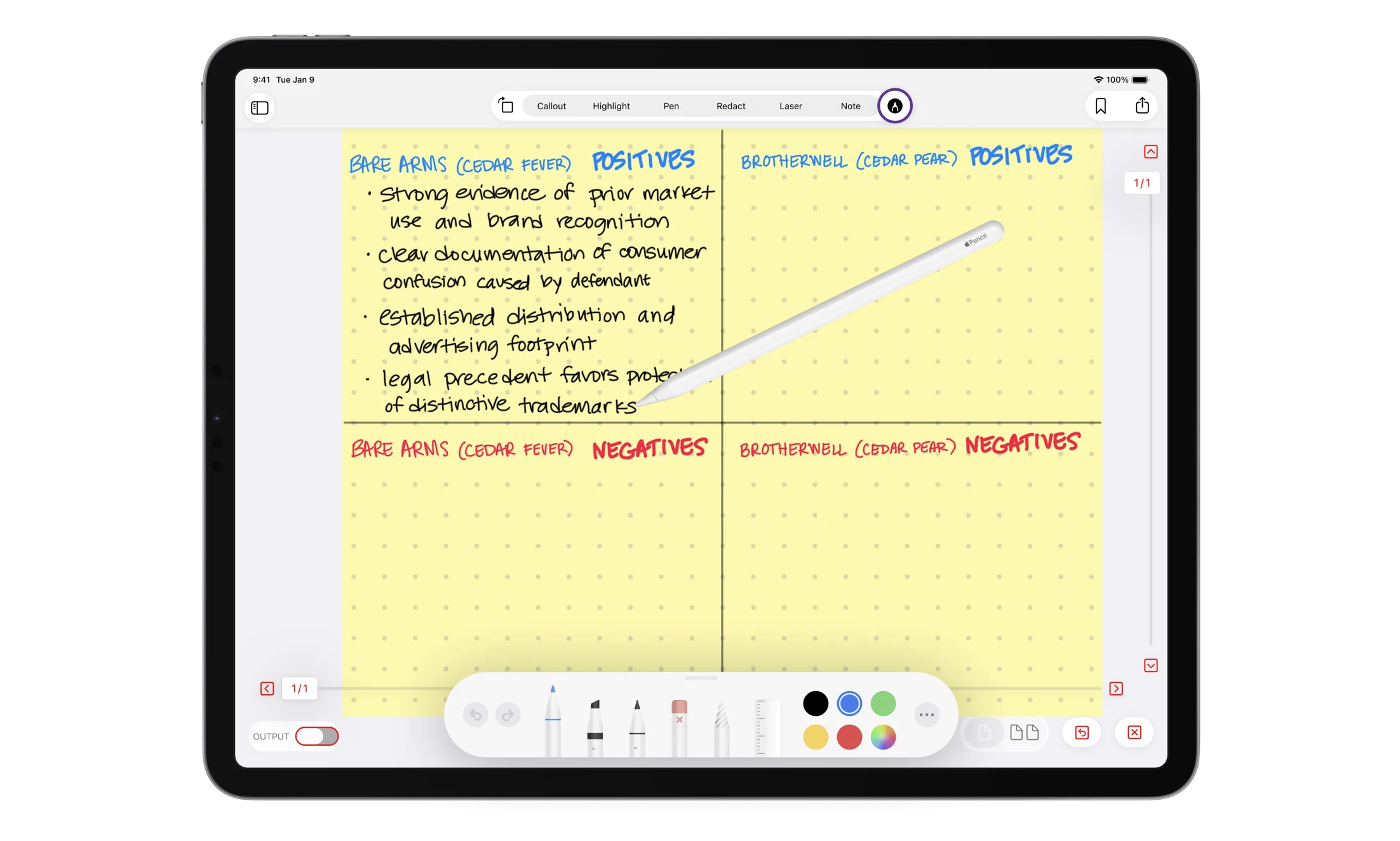
The annotation toolbar has been reorganized around how you use it while presenting. Related tools are grouped, and Undo and Clear now live inside the annotation toolbar so that the controls you reach for in sequence are next to each other.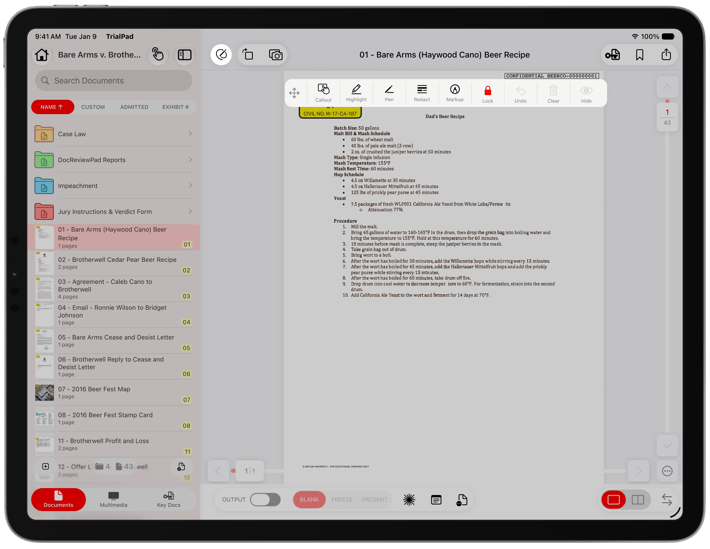
The Hide button on the annotation toolbar lets you temporarily hide any annotations on a document on the device, or on both the device and the output. You have full control of what annotations are shown and when, on pre-annotated documents and during a live presentation. If you've marked up an exhibit during case prep and saved it in Key Docs, you can present the clean version first, then show the highlighted and called out version. Or, choose to hide annotations in your view only to see what the document looks like without your markups in the way.
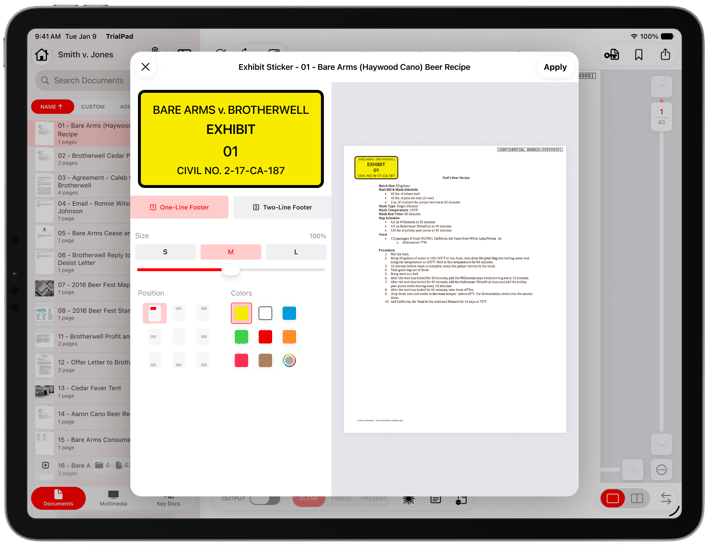
We also gave Exhibit Stickers a full redesign. The sticker editor is full-screen with a live preview, so you see exactly what the document with the Exhibit Sticker will look like before you apply it. There are more color options, including fully custom colors; an adjustable sticker size; the ability to leave the Exhibit Sticker title field blank; an optional second line in the footer; and flexible numbering that supports letters, numbers, or Roman numerals. If your practice or your court has a particular exhibit-labeling convention, there's enough control to match it exactly.
 Navigate and Organize Faster
If you import both documents and multimedia, you can import your evidence in one simple step. Documents and multimedia no longer need separate trips through the import process. Bring in a mix of PDFs, photos, and video clips in a single import. You also choose or create the destination folder during import, so a case gets organized as the evidence comes in. Pull in an entire discovery production or the full contents of an SD card in one pass, and it lands exactly where it belongs in your case structure from the start.
Importing is also safer and more flexible. Imports now run in the background with a compact progress indicator, so you can keep working in your case while files come in instead of waiting for the import to finish before you do anything else. And if you attempt to import an incompatible file, we've created clearer messages and options, including the ability to create a report of incompatible files or retry the import.
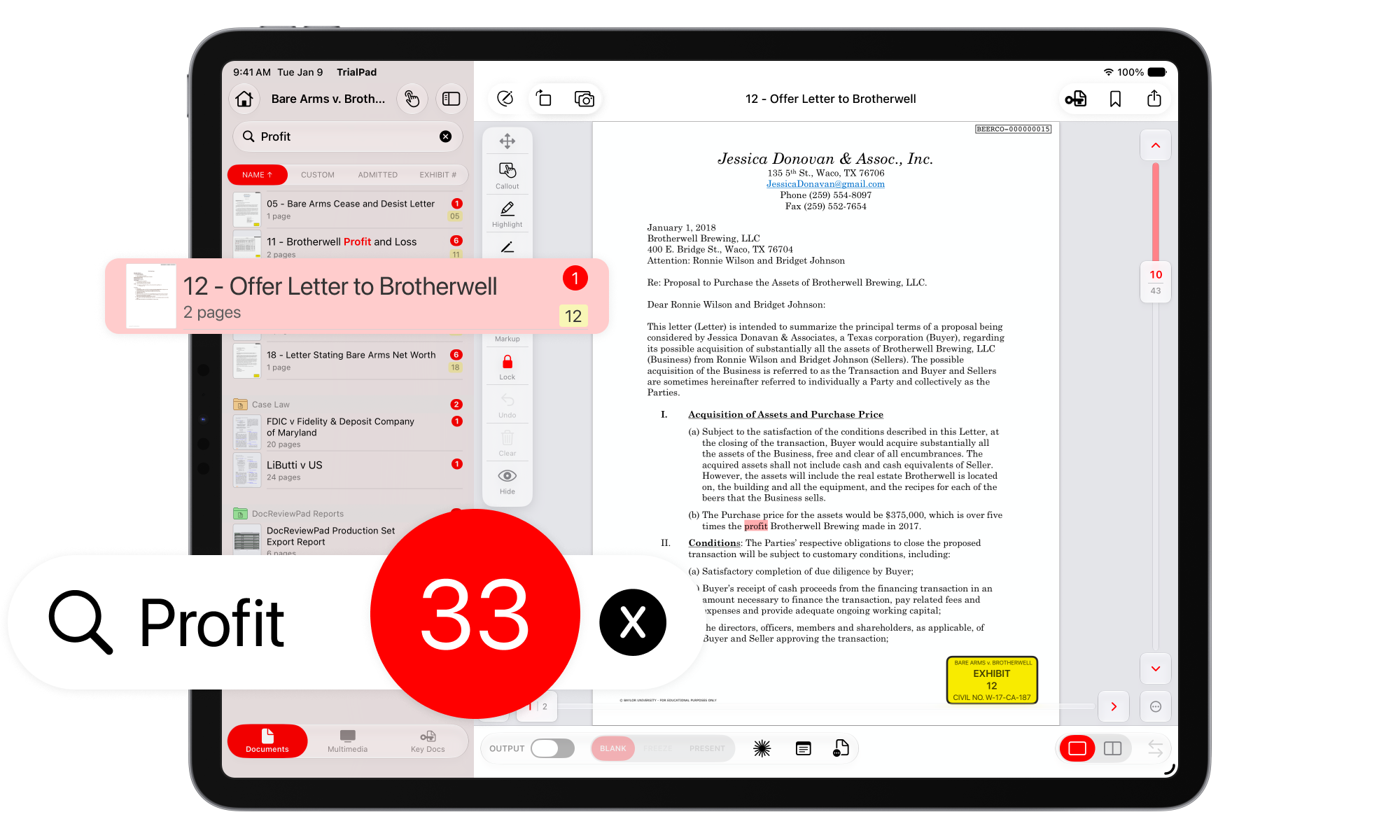
Search now reads everything in your case, not just what's been OCR'd. TrialPad automatically indexes every document the moment it's imported — including scans, old faxes, and photographed exhibits that were never OCR'd — and finds your words anywhere on the page, in any order, with results back in seconds. It's a big enough upgrade that it gets its own deep dive: read the full breakdown of what's new in search.
Navigating in and out of Key Docs is easier than ever. When viewing a document in the Documents tab, tap the Key Docs icon to see a list of any location in Key Docs where that document already exists, perfect to see if you’ve already included it in folders for specific witness’s examinations. Select one from the list, and you're there immediately.
While you're viewing a Key Doc, that same icon becomes an "Open Original Document" button, so getting back to the source if necessary is only one tap away.
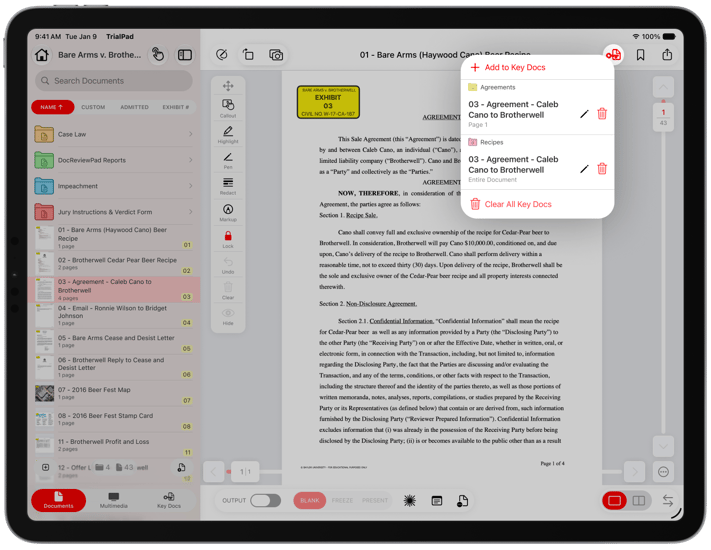
And, while you’ve always been able to create Key Docs from multimedia files, now you can create a Key Doc from a specific time range within the file. This means a critical clip can get its own quick-access entry the same way a specific page in a document always has.
And there’s more. The Documents List has added right swipe shortcuts for three more quick actions. Now swipe left on a document in the sidebar to Rename, Add to Key Docs or Delete, and swipe right to Mark Admitted, Assign an Exhibit Sticker, or Export. In the Multimedia List the same options for left swipe and right swipe apply, and in Key Docs we’ve added Export to the right swipe. All of this makes frequent actions even more convenient than ever before.
The long-press menu in the Documents List has grown as well. When you long press on the document or multimedia name in any of the tabs, you’ll have a list of quick actions right at your fingertips, including Mark Admitted, Assign Exhibit Sticker, Export, Export by Exhibit, Print, Move, Rename, Duplicate, and Delete. And because marking or unmarking a document as admitted is the kind of status change you don't want to trigger by accident, that action now asks for confirmation first.
A Workspace That Moves with You
The Annotation Palette, Presenter Notes, and Presentation Log open in resizable, repositionable, floating windows instead of fixed panels. This means you can position them where out of the way, but still available at a glance.
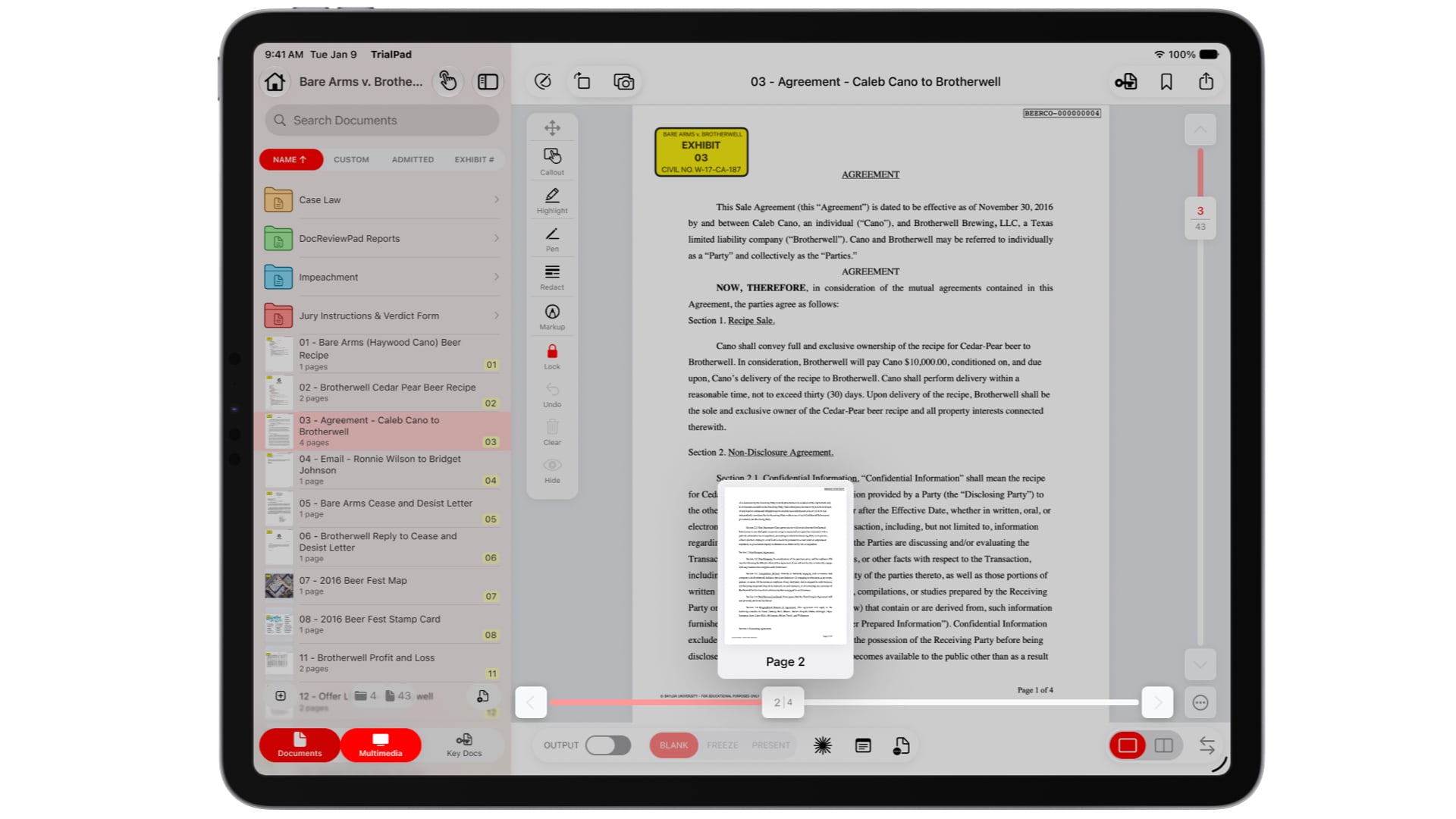
Thumbnail previews improve navigation within your document list, and within your documents as well. Drag the document slider at the side, or the page slider at the bottom of a multi-page document, and a thumbnail preview appears so you can see the actual page you're about to land on. Scrubbing through a three-hundred-page medical record or a lengthy composite photo exhibit is cleaner than ever.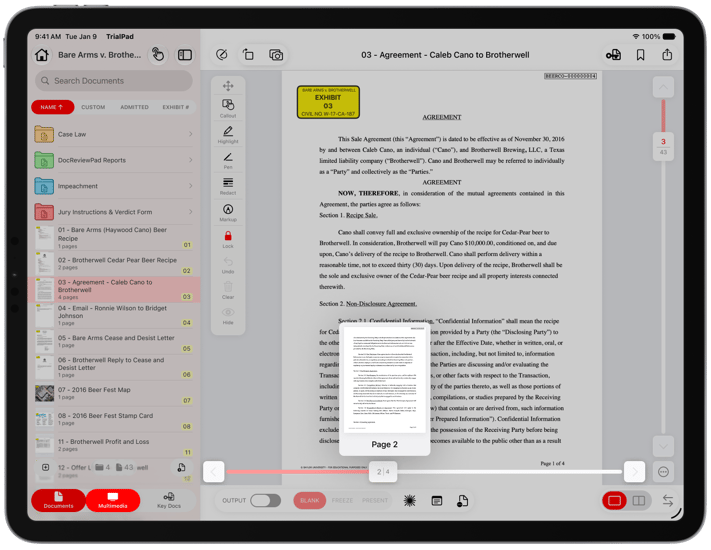
And theres more! The top bar now surfaces the title of whatever document or multimedia file is currently open. The laser tool and Presenter Notes have moved to the bottom presentation toolbar alongside the other tools you use while actively presenting; Snapshot has moved to the top toolbar; and Undo now lives with the rest of the annotation controls. The goal throughout is the same: the tool you need next should be near by.
Try It Yourself
We’ve made a lot of improvements we are confident you will love. None of them require a manual to use, and that’s always been the point of TrialPad. A hold-and-drag video scrub, a two-finger pinch to zoom into a photo, a swipe on a sidebar document, and an Apple Pencil tap to drop a laser trail across a witness's hand in a video are gestures you already know from every other app on your iPad, and are now doing serious work on your evidence. There's no separate system to learn and no one else's hands between you and the exhibit. It is just you, the case, and a screen that responds the instant you touch it.
Open TrialPad, pull up a Case File, and spend a couple minutes with the new video player and Split View layouts. The best way to know how much more powerful your next presentation can be is to try it for yourself.

Want to see all of this in action?
Watch the LIT Software team walking through everything new in TrialPad — from Laser Trail and bookmarks on video, to the redesigned Split View, to the faster swipe-based exhibit workflow.
👉 https://youtu.be/XTkAiLlkvoM?si=l4mynrxdejAO3A9M